
-

-

-

- Austria (27)
- General (16)
- HowTo (122)
- IT Security (129)
- Linux (128)
- Networking (65)
- Other (4)
-

- CDemu - a free, gpl cd/dvd-rom device emulator for linux
- heatpumpMonitor - Monitoring a Stiebel Eltron LWZ
- ignis backup tool - the heat-strengthened backup tool
-

- May 2026 (1)
- December 2021 (2)
- September 2019 (1)
- May 2019 (1)
- April 2019 (1)
- January 2019 (1)
- October 2018 (1)
- August 2018 (1)
- February 2018 (1)
- September 2017 (1)
- August 2017 (2)
- May 2017 (1)
- April 2017 (1)
- February 2017 (1)
- January 2017 (2)
- December 2016 (1)
- November 2016 (2)
- October 2016 (1)
- September 2016 (1)
- August 2016 (1)
- July 2016 (2)
- April 2016 (1)
- March 2016 (3)
- February 2016 (4)
- January 2016 (2)
- December 2015 (2)
- November 2015 (2)
- September 2015 (2)
- July 2015 (5)
- June 2015 (4)
- May 2015 (2)
- February 2015 (1)
- January 2015 (4)
- December 2014 (1)
- November 2014 (5)
- October 2014 (4)
- September 2014 (1)
- August 2014 (4)
- July 2014 (3)
- June 2014 (5)
- May 2014 (5)
- April 2014 (1)
- March 2014 (2)
- February 2014 (3)
- January 2014 (5)
- December 2013 (2)
- November 2013 (3)
- September 2013 (3)
- August 2013 (2)
- May 2013 (4)
- April 2013 (1)
- March 2013 (1)
- February 2013 (3)
- December 2012 (3)
- November 2012 (3)
- October 2012 (1)
- September 2012 (2)
- June 2012 (1)
- May 2012 (1)
- April 2012 (1)
- March 2012 (1)
- February 2012 (1)
- January 2012 (1)
- December 2011 (4)
- November 2011 (1)
- August 2011 (1)
- March 2011 (1)
- October 2010 (1)
- May 2010 (3)
- January 2010 (1)
- September 2009 (1)
- August 2009 (5)
- July 2009 (5)
- June 2009 (4)
- May 2009 (1)
- April 2009 (1)
- January 2009 (1)
- December 2008 (6)
- November 2008 (6)
- October 2008 (2)
- September 2008 (11)
- August 2008 (4)
- July 2008 (7)
- June 2008 (2)
- May 2008 (7)
- April 2008 (5)
- March 2008 (9)
- February 2008 (15)
- January 2008 (11)
- December 2007 (3)
Howto install Adobe Digital Editions on Ubuntu 12.04 and use it with an e-book reader
June 3, 2012
A local public library here in Tirol/Austria allows you to rent e-books, you only need to have Windows PC or Mac to run Adobe Digital Editions – at least that is stated on their homepage, but it is quite easy to get the software running on an Ubuntu 12.04.
This is a short description on how to install the software and than integrate a generic e-book reader so you can read the rented e-books on your e-book reader. The e-book reader just needs to presents itself a USB mass storage device. I’ve tried it with an Iriver Story HD and an old Sony PRS-505 – both work. I guess the e-book reader needs to be Adobe Digital Editions ready as both of mine show that during boot up.
Anyway lets start. First you need to start the Ubuntu Software Center and search for the meta package “wine” and install it.
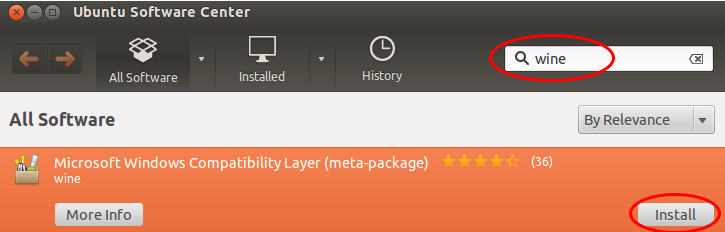
Than you need to download the Adobe Digital Editions Installer for Windows. I provide here a direct link (hope it stays valid for a long time) as on the Adobe homepage you don’t get the download link as it “verifies” with Flash if your OS is supported which it is not in this case. So here is the link.
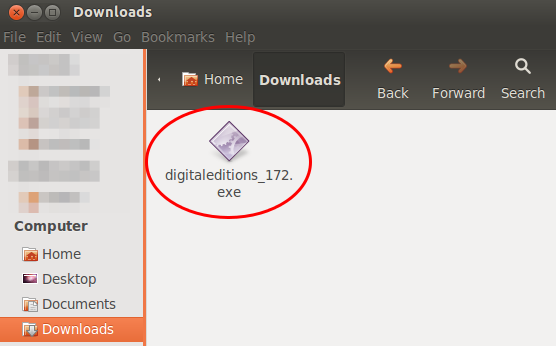
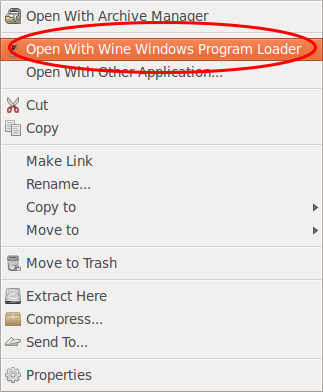
Start now your file browser (Nautilus) press the right mouse bottom on the installer and select than “Open With Wine Windows Program Loader”.
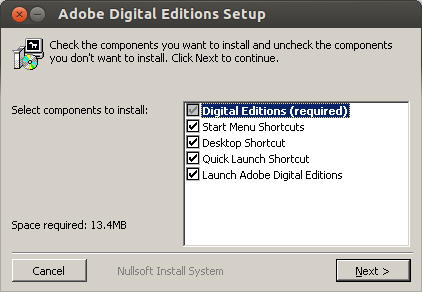
After some seconds you are within the installer. I would say just press “Next” as the software is installed anyway within the .wine subdirectory in your home directory.
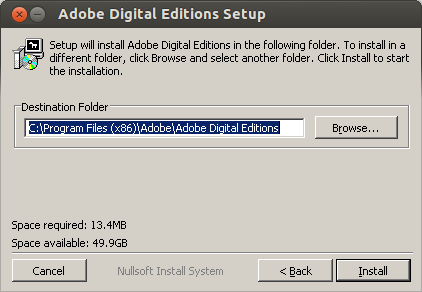
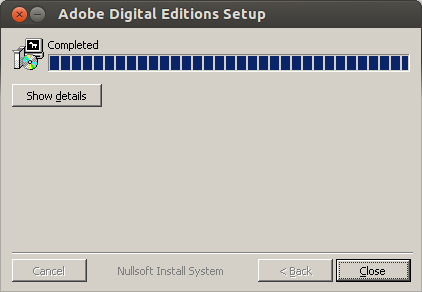
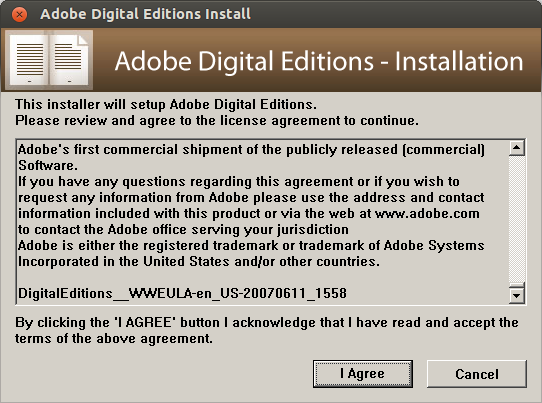
Now the Adobe Digital Editions got started and greets you with following window.
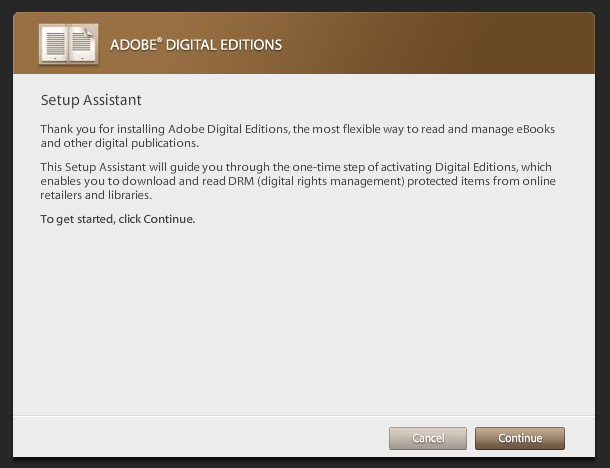
And after a next click you need to select “Authorize Computer” if you want later to connect an e-book reader.
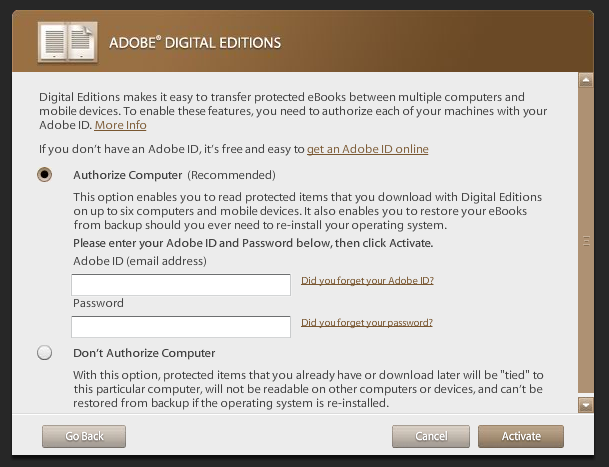
Just click on “get an Adobe ID online” and your default browser is launched and you can create one.
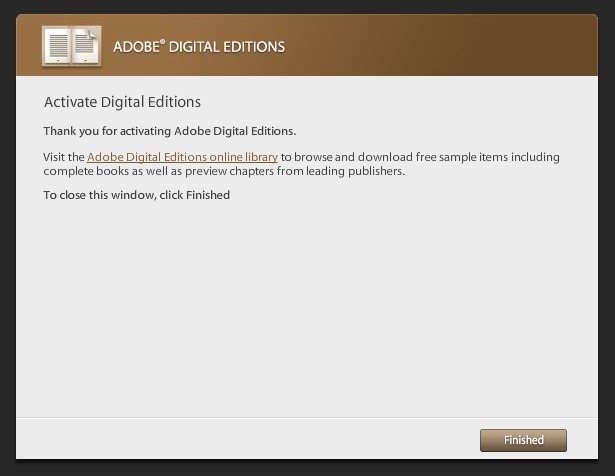
The Adobe Digital Editions is running but it does not see the e-book reader. For this we need to start the program “Wine Configuration” (Just type “wine” in the “Dash Home”), which looks like this:
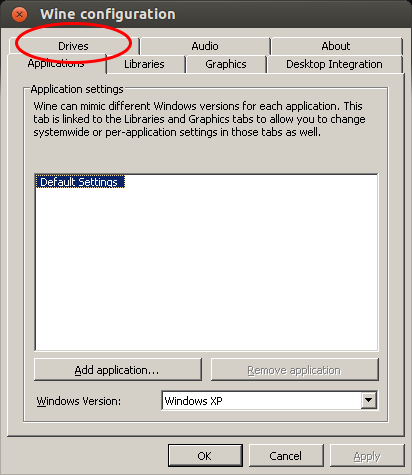
Go to the Drives tab where you need to add a new drive letter for your e-book reader (even if it shows it already with an other drive letter).
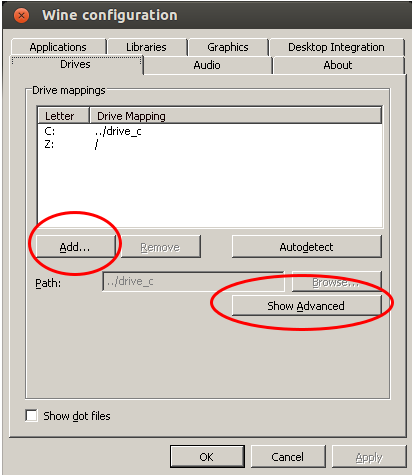
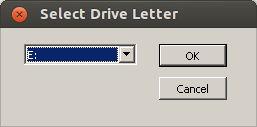
After choosing the drive letter select “Show Advanced” and choose the path of the mount point for your e-book reader (plug it into your computer and a directory within /media should be created automatically) and now the important setting: Change the type from automatic to “Floppy disk”.
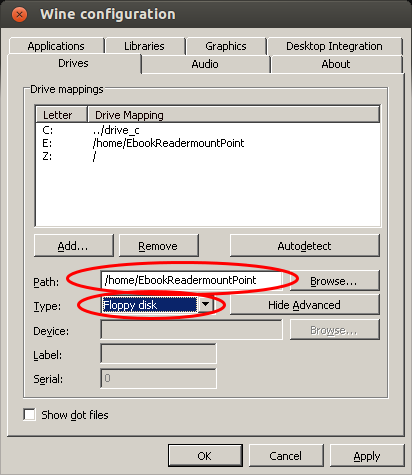
Save the changes, and restart “Adobe Digital Editions” (Just close it and than type “adobe” in the “Dash Home” and select it). If your e-book reader is mounted in the specified directory, the e-book reader should be detected and its content shown or if you connected it the first time you will be asked to peer it.
The End!
60 Comments »
RSS feed for comments on this post. TrackBack URI
Leave a comment
Powered by WordPress
Entries and comments feeds.
Valid XHTML and CSS.
53 queries. 0.073 seconds.
[…] sono svariate guide (1) (anche in inglese (1,2)) su internet che spiegano come installare Adobe Digital Editions su Linux, ma tendono a diventare […]
Pingback by Come installare Adobe Digital Editions su Linux (Ubuntu 14.10 Utopic Unicorn) | balist.es — February 15, 2015 #
Thanks, works excellent on Ubuntu 15.04!
http://info.referata.com/wiki/ADE_on_Ubuntu
Comment by Stephan Reichel — August 23, 2015 #
I’m not using Ubuntu, but that’s really nice tutorial
Comment by Anindya — August 24, 2015 #
Great instructions. Worked perfectly.
Using Lubuntu 12.04 on a Dell Latitude D400, with a Kobo Aura eReader.
Thank you.
Comment by Scottie — August 24, 2015 #
It works!
I have Linux Mint 17.1 on Dell Latitude D520. I’ve tried the ADE 3.0 and 2.0, but it didn’t work with Wine. This instruction helped!
Thank you!
Comment by Istvan — October 22, 2015 #
It doesn’t work for me with Ubuntu 14.04.. When trying to install ADE, it hangs..
Comment by oeirot — June 5, 2016 #
Thank you! I was really struggling to install Adobe and then get it to recognise my Nook device. These instructions are so straightforward and clear and they worked perfectly!
Thank you 🙂
Comment by Liz — July 24, 2016 #
Thank you nach Tirol -works supergut!
Comment by Miku — October 9, 2016 #
Its working good. Thanks for sharing the information.
Comment by MadhuMohan — October 6, 2017 #
Thanks a lot, very helpful
Comment by Fabius — October 13, 2017 #